If your iPhone has ever frozen on the Apple logo after an update, you know what came next: find a cable, plug into a Mac or PC, and wrestle with the old recovery mode. iOS 27 changes that: the iPhone now has its own recovery screen, like Apple silicon Macs, and you can try to fix it without a computer. The timing is good, too, because Apple shuts down its user-to-user support forums on November 20, so more of us will be troubleshooting on our own.
What the recovery screen is
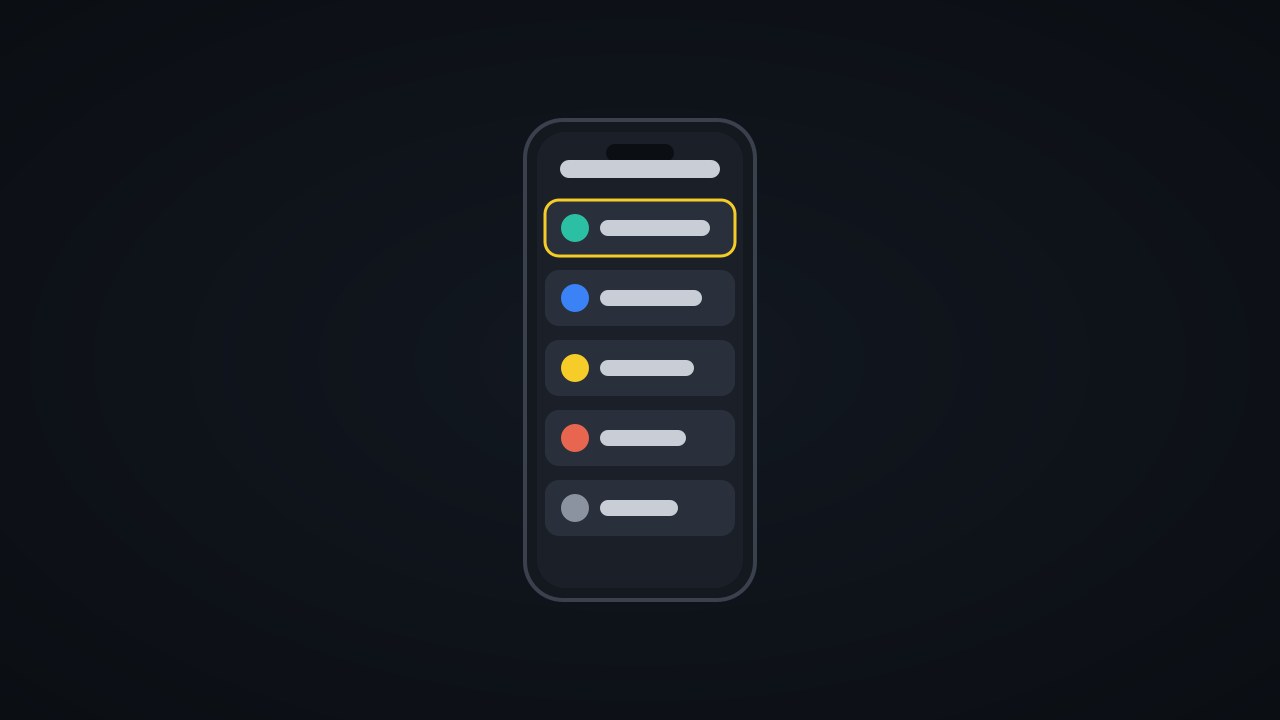
It’s a lightweight startup mode that doesn’t load iOS. Instead of the Lock Screen, your iPhone shows a list of tools to diagnose and repair the system. It arrived on September 14, 2026, with iOS 27 and iPadOS 27, works the same way on iPad, and doesn’t depend on Apple Intelligence, so it’s available on any iPhone that runs iOS 27.
You can open it any time, even when your iPhone is working fine. It’s worth learning the button sequence now, before you need it.
How to get in, step by step
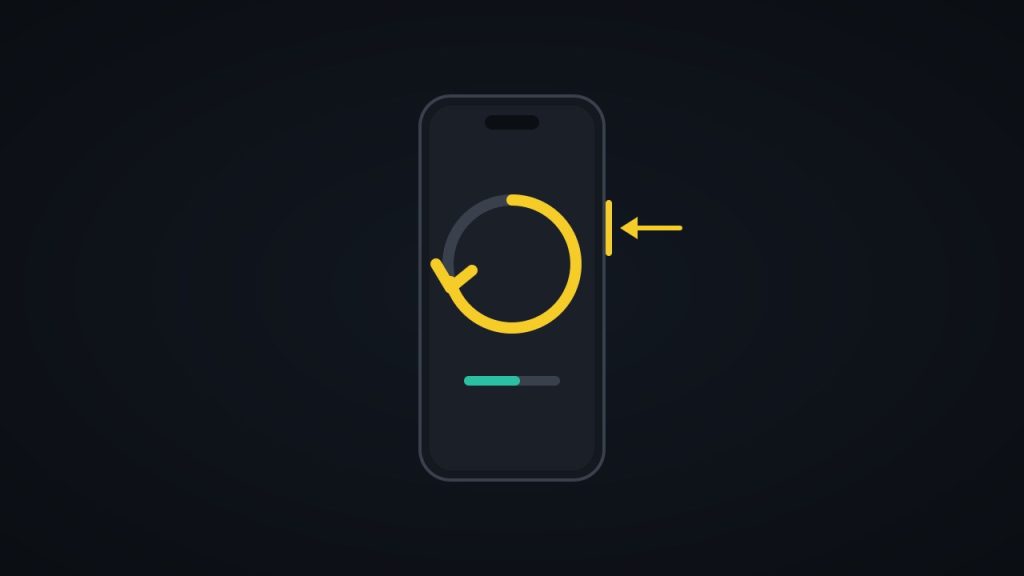
- Turn off your iPhone and wait about a minute so it shuts down completely.
- Press and hold the side button. When the Apple logo appears, keep holding.
- Keep holding until you see “Continue holding for recovery…”
- Let go when “Loading recovery options…” appears. A few seconds later, the recovery screen opens.
On iPad it’s the same, using the top button.
What each option does
- Recovery Assistant: looks for software problems and tries to fix them on its own. Start here.
- Software Update: reinstalls the latest version of iOS. Handy if a failed update has your iPhone stuck in a restart loop. It may not show up on some older models.
- Diagnostics Mode: checks hardware and software and can recommend repairs. It’s what Apple Support will ask you to run if you call.
- Erase All Content and Settings: resets the iPhone to factory settings, just like the option in Settings. It wipes everything, so it’s the last resort if you don’t have a backup.
- Recovery Mode: the classic mode for restoring with a Mac or PC, minus the button combo.
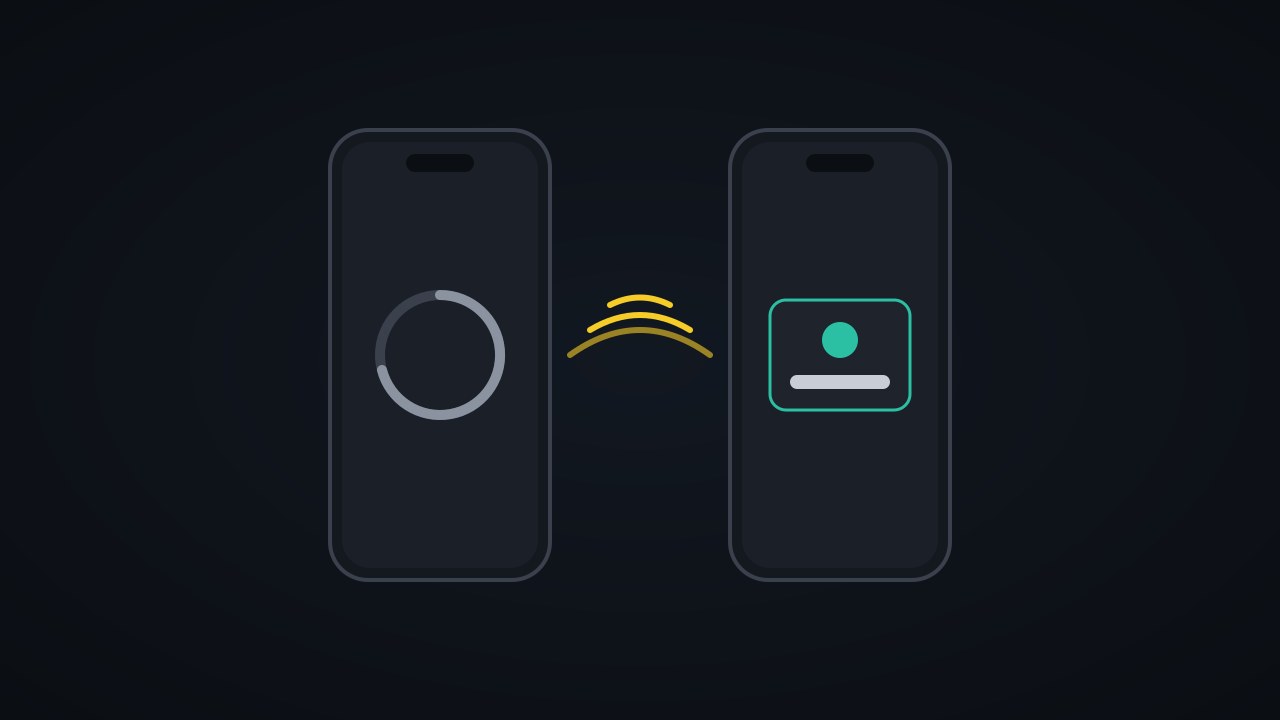
There’s also a hidden sixth option: Nearby Device Recovery. It appears if you press and hold the side button again while you’re on the recovery screen. It lets you restore your iPhone with help from another iPhone or iPad nearby, no computer required. It’s only on newer models, and Apple doesn’t publish a full list, so if you don’t see it, your iPhone doesn’t support it.
How to exit
Tap the power button in the top-right corner and confirm the restart. You can also press and hold the side button and choose Restart or Shut Down.
When to use it
- Your iPhone is stuck on the Apple logo.
- An update won’t finish installing, or the iPhone keeps restarting.
- A beta is causing startup problems. If you’re thinking about trying iOS 27.3, here’s how to install the iOS 27.3 public beta.
- Apple Support asks you to run diagnostics.
- You’re selling or giving away your iPhone and want to erase it. Check what to do before you sell or give away your iPhone first.
My take
This is one of the most useful additions in iOS 27, even if almost nobody will notice it until something goes wrong. The old recovery mode needed a computer and a button combo that hardly anyone remembers under pressure. Letting the iPhone try to fix itself is exactly what most people need, especially now that Apple is shutting down Apple Support Community. It doesn’t replace a good backup, though: if Erase turns out to be the only fix, an up-to-date iCloud backup is the only thing that saves you.
Have you had to use it yet? Let me know in the comments or on social media.
Sources: Apple Support, MacRumors, iDownloadBlog, iThinkDiff, Elcomsoft. As of November 14, 2026.