Apple ships new wallpapers with every version of iOS, but iOS 27 goes a step further: it lets you create your own just by describing what you want. It does this with Image Playground, Apple Intelligence’s image generator, which got an overhaul this year, makes better images with fewer restrictions, and now lives right inside the wallpaper picker. No app to open.
How to create your wallpaper, step by step
- Open the wallpaper gallery: go to Settings > Wallpaper > Add New Wallpaper, or touch and hold the Lock Screen and tap +.
- In the top row, tap Image Playground.
- Describe the image you want.
- Optionally, pick a style or base it on one of your photos or a person.
- The image comes out already sized for your iPhone.
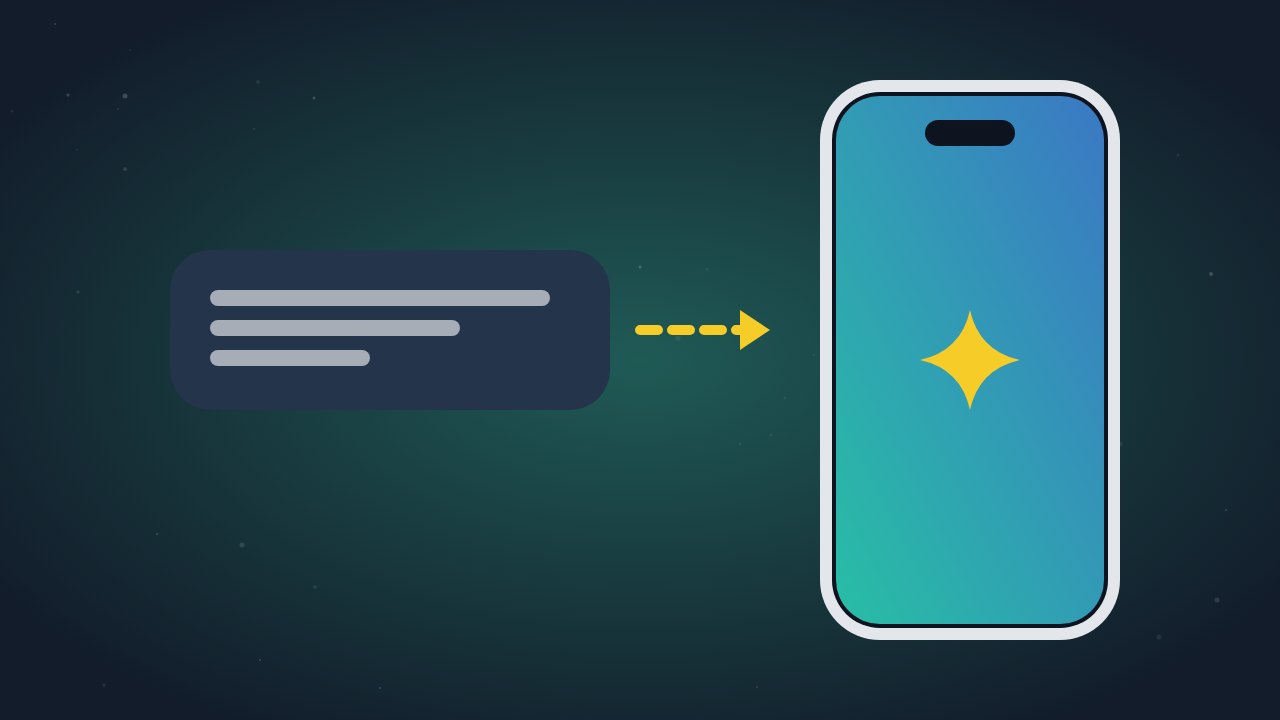
A tip: the more specific, the better. “A landscape” isn’t the same as “a lighthouse at sunset, calm sea, orange tones.” And keep the clock at the top of the Lock Screen in mind: images with the main subject in the bottom half usually look better there.
The wallpapers your iPhone suggests
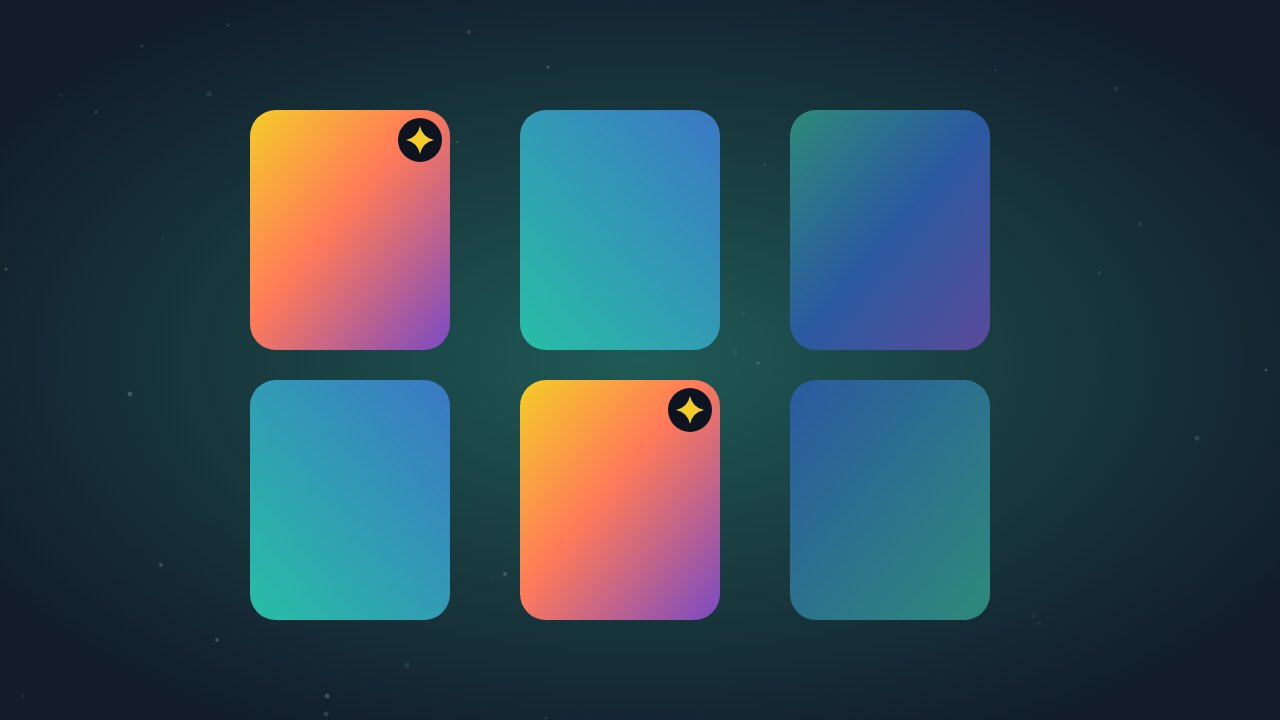
Even if you do nothing, iOS 27 creates some wallpapers on its own and puts them in the gallery’s Featured section, such as stylized versions of your own photos. Every AI-generated wallpaper has an Image Playground icon next to it, so you always know where it came from. To use one, just select it.
Which iPhone you need
Image Playground is part of Apple Intelligence, so you need a compatible iPhone: iPhone 15 Pro or 15 Pro Max, any iPhone 16 or later, iPhone Air, or iPhone Duo. On an iPhone running iOS 27 without Apple Intelligence, the wallpaper gallery shows up without the Image Playground option. If you want to see what else Apple Intelligence is picking up, here’s what’s new in the iOS 27.3 beta.
My take
Of all the AI features in iOS 27, this is one you’ll use most without even noticing, because your wallpaper is the first thing you see every time you pick up your phone. I like that it’s built into the picker itself and that generated images are labeled with an icon. Keep your expectations realistic, though: sometimes you’ll need to tweak the description two or three times to get something you like. My favorite use is with your own photos: your dog turned into an illustration feels a lot more personal than any stock wallpaper.
Have you made yours yet? Show me on social media or tell me in the comments.
Sources: 9to5Mac, LavX News (requirements). As of November 18, 2026.