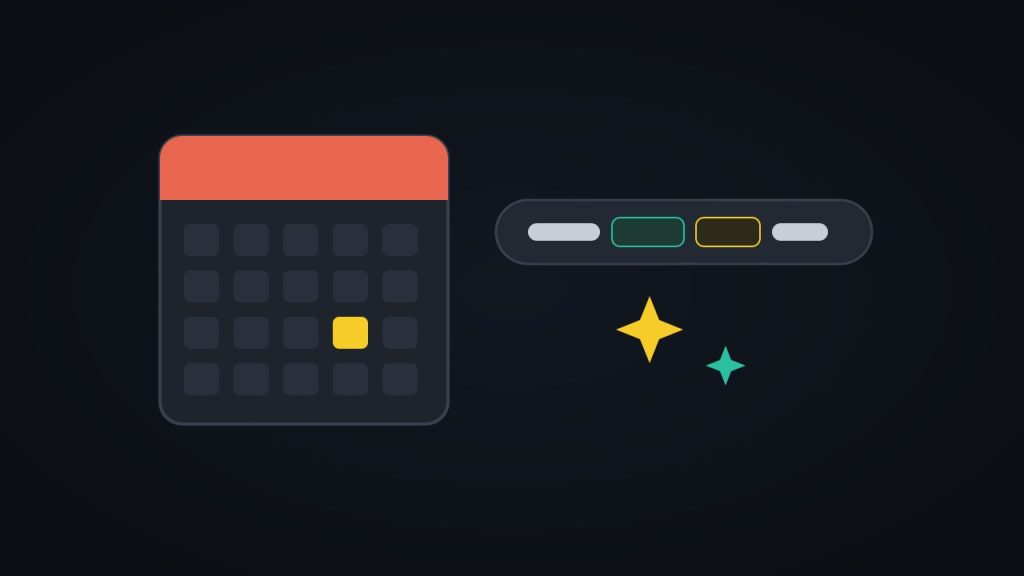
Adding an event to the iPhone’s Calendar has always been a little tedious: type the title, open the date picker, spin the time wheel, search for the location… In iOS 27, Calendar and Reminders understand plain sentences: you type the event the way you’d say it, and the app fills in the date, time, and place. With holiday dinners, shopping, and end-of-year plans coming up, now’s a good time to start using it.
How it works
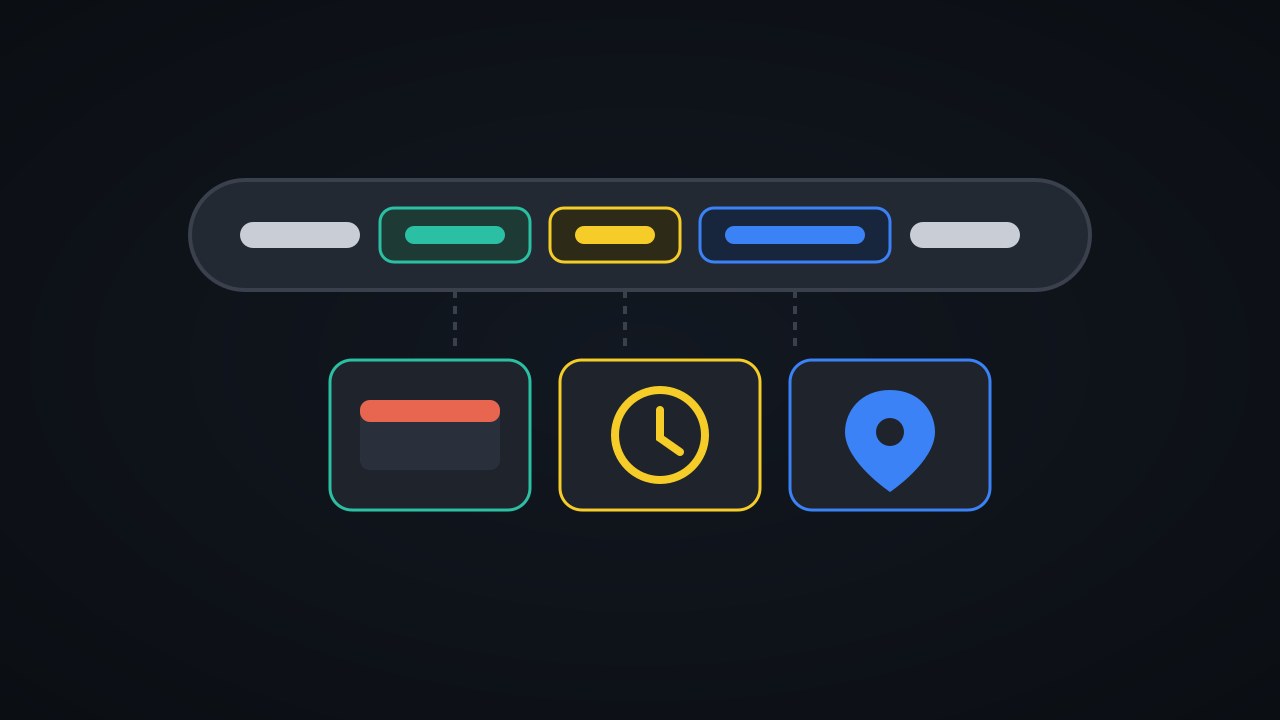
- In Calendar, the app recognizes people, dates, and places as you type and highlights them. Tap a suggestion and it’s added to the event.
- In Reminders, type something like “Remind me to go to the grocery store at 2 p.m. on Wednesday,” and the app fills in the date, time, and location (if you mention one) on its own.
- You can also create reminders from Calendar, and natural language works the same way there.
Which iPhones support it
It’s an Apple Intelligence feature, so you need an iPhone 15 Pro or later. Other iPhones running iOS 27 get the updated Calendar app, but without sentence recognition. It also works on iPad and on the Mac with macOS 27 Golden Gate.
Step by step
- Open Calendar (or Reminders) and tap the + button.
- Type the event as one sentence, for example: “Team holiday dinner Friday December 18 at 7 p.m. downtown.”
- Tap the highlighted parts (date, time, place, or person) to add them to the event. The time usually fills in by itself.
- Check that everything looks right and save with the checkmark.
If nothing gets highlighted, try a shorter, more direct sentence (“Dentist Tuesday 5:30 p.m.”) and write the date and time in numbers. If you prefer the old way, you can turn the feature off in Settings.
Ideas for the holidays
- Family dinners: “Thanksgiving dinner at Mom’s on the 26th at 4 p.m.”
- Shopping: “Remind me to buy wrapping paper Saturday morning.” Reminders also sorts grocery lists better in iOS 27.
- Whole schedules at once: with Visual Intelligence, snap a photo or take a screenshot of a schedule (your kid’s games, school concerts) and add several events in one go.
If you rely on timed reminders, make sure the alarms actually go off. Here’s how: Reminders alarms not going off on your iPhone?
Other Calendar changes in iOS 27
- Busy/Free for iCloud calendars: you can finally mark an event as busy or free, something other services have offered for years.
- A redesigned look for event details and the event creation screen, with reorganized options and icons for each category.
- Extra-large widgets: Calendar has widgets that take up an entire Home Screen page.
If you like these shortcuts, there are more in 6 iOS 27 tricks almost nobody uses.
My take
Apps like Fantastical have done this for more than a decade, so Apple is late. But having it in the Calendar app that ships on every iPhone matters, because most people never install another calendar app. Reviews are mixed: some writers say it works great, others say it doesn’t always get things right. So my advice is to double-check the event before saving for the first few weeks, especially with long sentences. Once you get used to typing “what, when, and where,” you’ll save a lot of taps every day.
How well does it understand you? Let me know in the comments or on social media.
Sources: MacRumors, 9to5Mac, Cult of Mac, iDownloadBlog. As of November 14, 2026.