iOS 27 has been on our iPhones since September, and almost everyone is talking about Siri AI. But among all the AI, there are small features that slipped in quietly and that, once you know about them, you use every day. I already showed you how to set the alarm volume separately from the ringer and what’s new in Photos; today, here are six more tricks almost nobody is using.
1. Paste what you copied with one tap from the keyboard
This is my favorite. When you copy text, a link, or a photo and then tap a text field in another app, the keyboard shows a preview of what you copied in its top row: the text or a thumbnail of the image. One tap and it’s pasted, without pressing and holding or hunting for the Paste menu. It may seem minor, but it saves a lot of gestures every day, especially with screenshots.
2. Create your own passes in Wallet
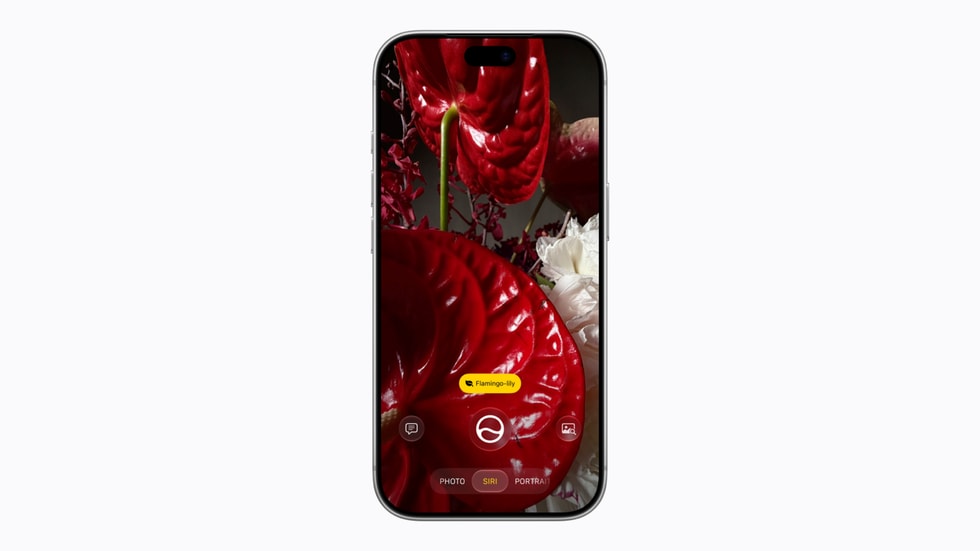
You can finally add that gym, library, or grocery rewards card that doesn’t have an official pass to Wallet. Open Wallet, tap +, and choose the option to create a pass. You have three ways to do it:
- Scan the physical card with the camera: the iPhone recognizes the barcode or QR code and matches it to a template. It uses Visual Intelligence, so you need an iPhone 15 Pro or later.
- From a photo or screenshot: if you have an image of a ticket or card with its code in Photos, the option to add it to Wallet appears.
- By hand: pick a template, fill in the fields and the code, and change the color if you want.
Keep two things in mind: a pass you create isn’t official, so the business decides whether to accept it, and tickets with codes that change every few seconds won’t work from a screenshot. If the company offers its own Wallet pass, use that instead.
3. Connectivity Assist: more stable… and more data
The old Wi-Fi Assist gets a new name in iOS 27, Connectivity Assist, and you’ll find it in Settings > Wi-Fi. Apple says it uses cellular data in addition to Wi-Fi to make your connection more reliable, and that switching between networks is smoother. If you have plenty of data, leave it on. If your plan is tight, or you notice your data disappearing at home, turn it off: when Wi-Fi is spotty, it will fall back on your cellular data.
4. See only the photos you took yourself
If your library is full of memes, screenshots, and photos people send you in group chats, you’re going to love this. In the Photos app, go to Collections > Utilities and you’ll find a new collection called Captured by Me that shows only the photos taken with your iPhone’s camera. Perfect for finding a vacation photo without scrolling past a thousand screenshots.
5. A cleaner Lock Screen
Two small but nice details:
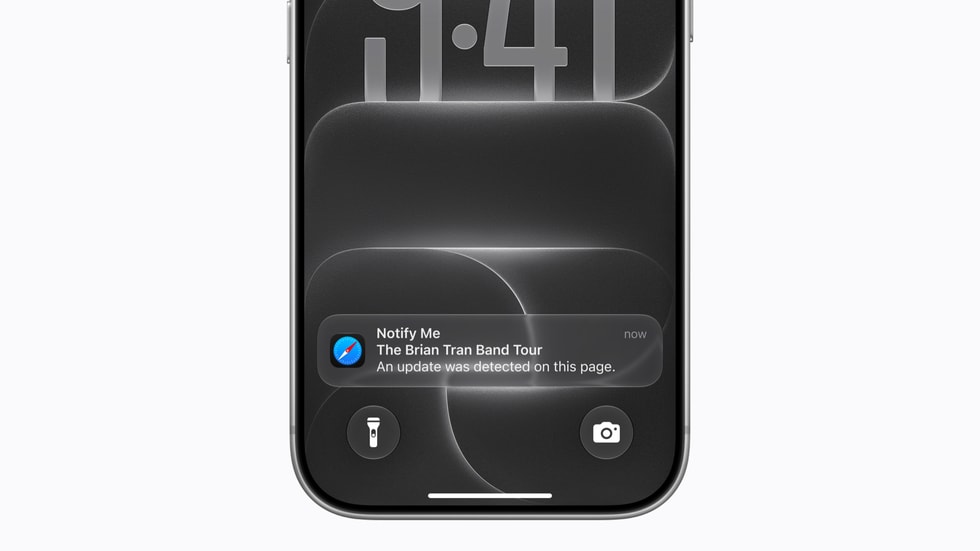
- Small clock: iOS 27 lets you put the date and time on a single line at the top, so much more of your wallpaper shows.
- Dismiss music controls: when you finish listening to something and the playback controls stay on the Lock Screen, you can now swipe them away, just like a notification.
6. Automate Low Power Mode by typing what you want
Before, if you wanted your iPhone to turn on Low Power Mode automatically when it dropped below a certain percentage, you had to build the automation step by step in the Shortcuts app. In iOS 27, you just describe the automation in your own words and Shortcuts creates it for you. For example, something like “turn on Low Power Mode when the battery drops below 30%.” It’s the easiest way to make your battery last longer without having to remember anything. And if battery life is your thing, here’s how to check your iPhone’s battery health and take care of it.
My take
Siri AI grabs the headlines, but day to day, it’s these little things that make an operating system feel more comfortable. Pasting from the keyboard and seeing only your own photos should have happened years ago. And creating Wallet passes is one of those features you didn’t know you needed until you leave your wallet at home. Which of these didn’t you know about?
Sources: Tom’s Guide, 9to5Mac, MacRumors (Connectivity Assist), MacRumors (battery), iGeeksBlog, Apple Newsroom.