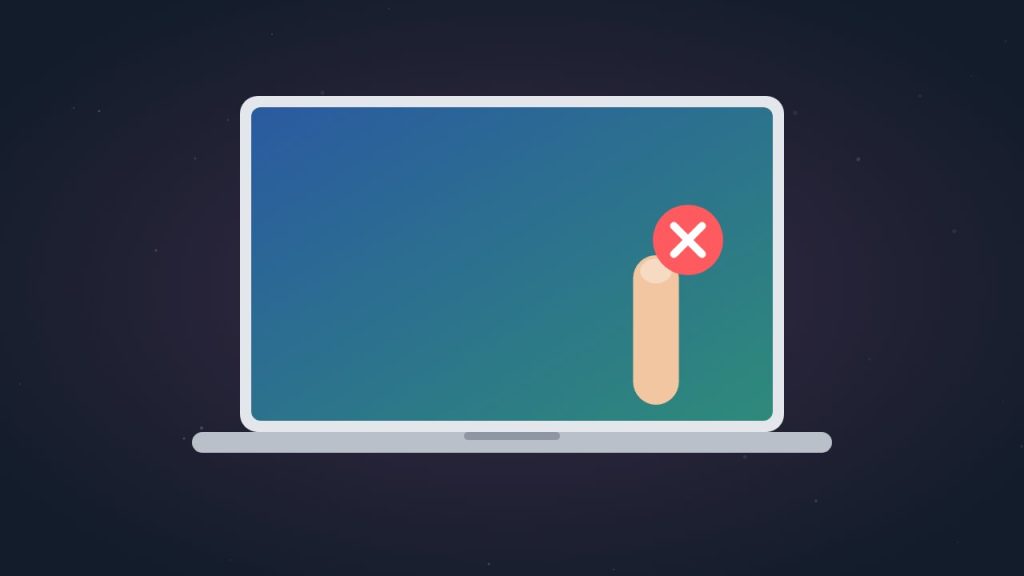
Apple spent years saying the Mac didn’t need a touchscreen, and the MacBook Pro with PROLED XDR is the first one that has it. Not everyone wants it, though: some people touch it by accident while adjusting the lid, some hate the fingerprints, and some just prefer the trackpad. The good news is that touch is optional, and you can turn it off with a single setting. Here’s how, plus one important detail if you use an iPad as a second display.
How to turn off touch completely
- Click the Apple menu in the top-left corner and choose System Settings.
- Select Accessibility in the sidebar.
- Under Physical and Motor, click Touch.
- Turn on Ignore Touch Gestures.
From then on, your Mac ignores any touch on the screen. To get it back, return to the same screen and turn the switch off.

Heads up if you use Sidecar
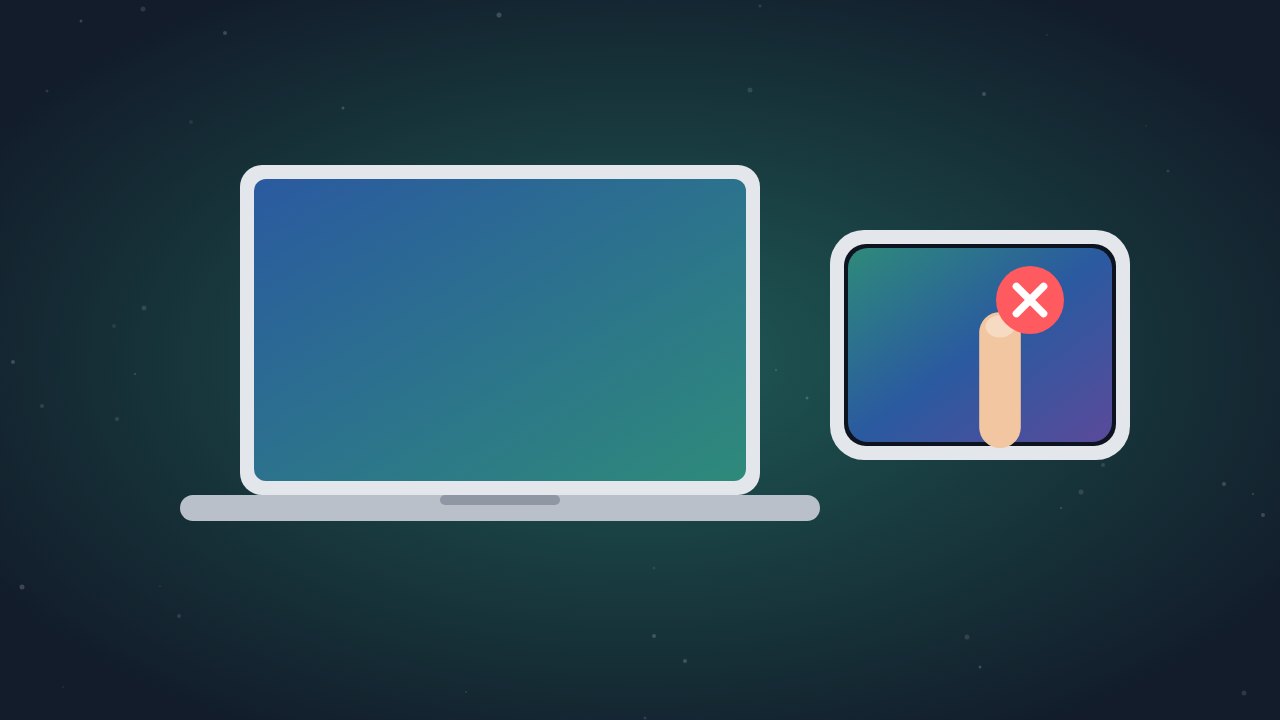
That setting also applies to Sidecar, the feature that turns your iPad into a second display for your Mac: with it on, the iPad stops responding to touch while it’s connected. You can still move the pointer over to it with the trackpad or mouse. It works the same on any Mac with Sidecar, not just the PROLED model.
The alternative: turn off only the gestures that bug you
If it’s a specific gesture that annoys you rather than touch in general, you don’t need to switch everything off. In System Settings > Touch Display you can turn gestures off one by one, and for some of them, like swiping between spaces, Mission Control and App Exposé, choose how they’re performed.
The same Accessibility section also has Touch Accommodations, to change how the screen responds to taps and touch-and-hold, and AssistiveTouch. And a note for developers: Xcode’s iOS Simulator responds to direct touch, so you can test taps, swipes and pinches right on the screen. That’s a good reason to leave it on.
If you’re still on the fence, here’s what the first MacBook Pro PROLED XDR reviews said: the display is the star, and touch is a bonus. It starts at $2,899.
My take
I like how Apple handled this: touch is there, but it isn’t forced on you. As the reviews said, day to day it’s an extra you use now and then to scroll a web page, zoom into a photo or hit a quick button. If it doesn’t win you over, one switch and you’re done. The only thing I’d change is giving Sidecar its own setting, because it makes sense to want touch on the iPad but not on the Mac, or the other way around.
Would you keep touch on or turn it off? Let me know in the comments or on social media.