If your kids have an iPhone or iPad, this is probably the iOS 27 feature that matters most to you. Apple has rebuilt parental controls almost from scratch, and it did so together with the American Academy of Pediatrics, which has also published a guide to help families build healthy digital habits.
The old per-app limits give way to a more logical system: time by category within a daily limit, permission to visit new websites, contact approval and a button to pause the device instantly. Here’s how it works and how to set it up.
Before you start: the requirements
- You need Family Sharing set up with your kids in the group.
- Every device in the group must be updated to iOS 27, iPadOS 27 or macOS 27. If one iPad stays on the previous version, the new features won’t apply properly.
- For adults, almost nothing changes: the overhaul is designed for kids’ accounts.
How to set up parental controls in iOS 27, step by step
- Open Settings and go to Family.
- Tap your child’s name. If they don’t have an account yet, tap Add to create a child account.
- You’ll see the new redesigned dashboard, with daily time, permissions and restrictions in one place.
- Set the total daily limit and split the time across categories.
- Turn on the permissions you want: ask to browse, ask to add contacts and Communication Safety.
One important detail: for kids under 13, iOS 27 turns on ask to browse, the adult website filter and contact management by default. You don’t have to do anything, although it’s worth checking.
Time by category: goodbye to app-by-app limits
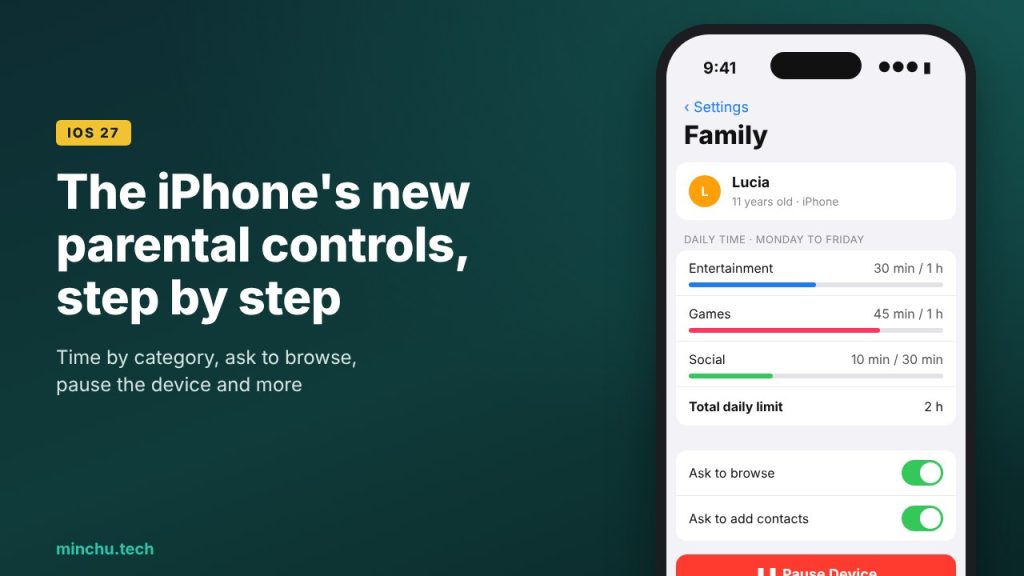
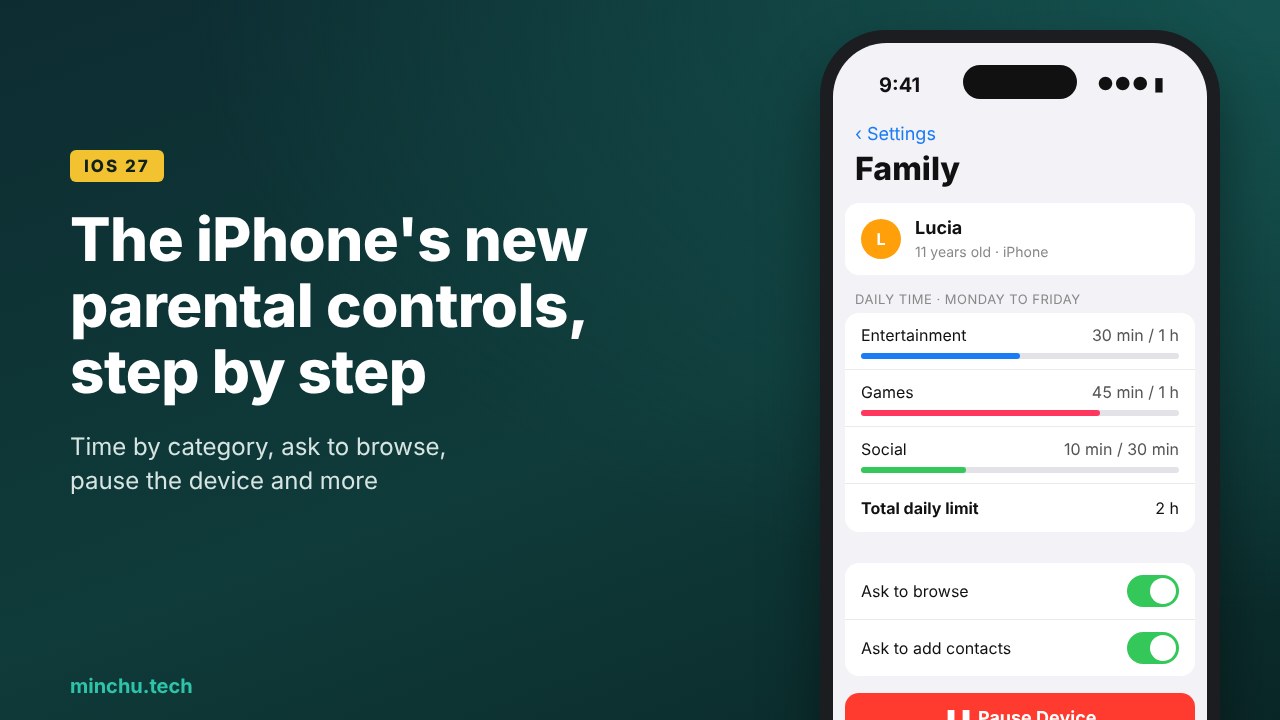
This is the big change. Instead of setting a limit for each app, you now set a total daily time and split it across categories: Entertainment, Games and Social, plus custom categories you can create yourself (for example, “Homework” with no limit).
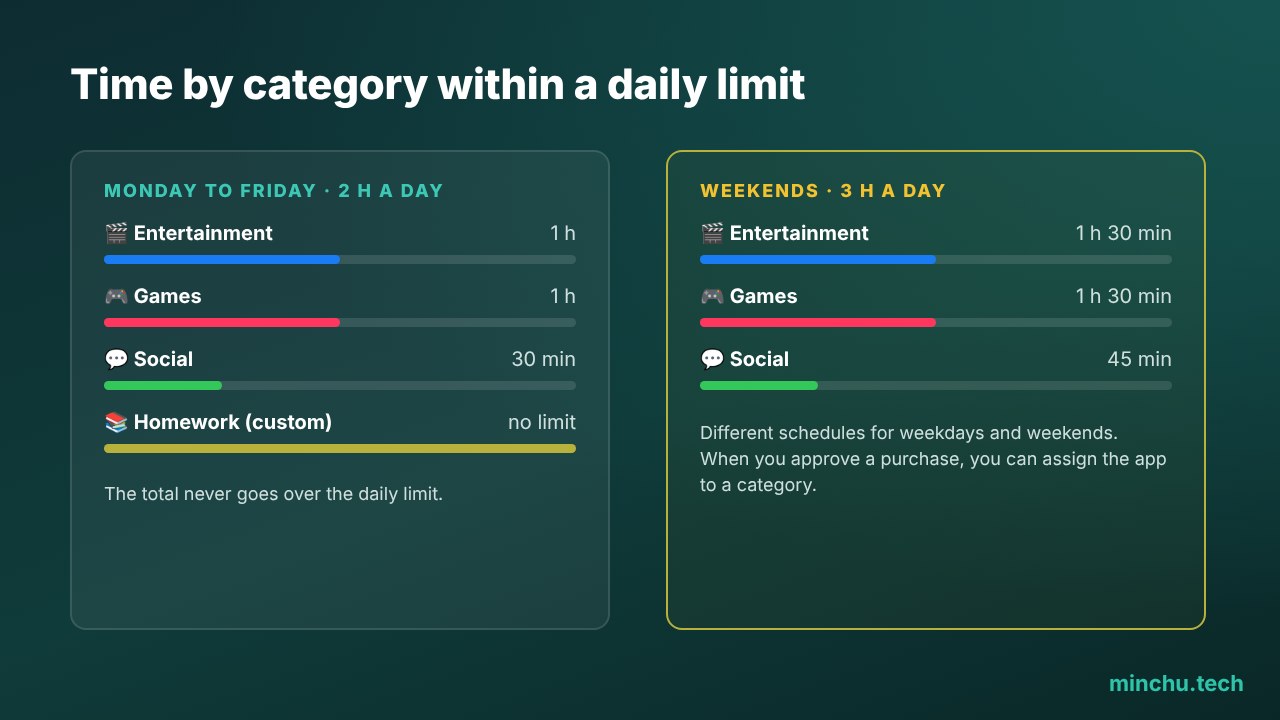
You can also have different schedules for weekdays and weekends, something many families used to do by hand, changing the limits every Friday. And when your child asks to buy or download an app (with Ask to Buy), you can assign it straight to a category when you approve it, so no new game slips through without a limit.
The new permissions: browsing, contacts and pausing
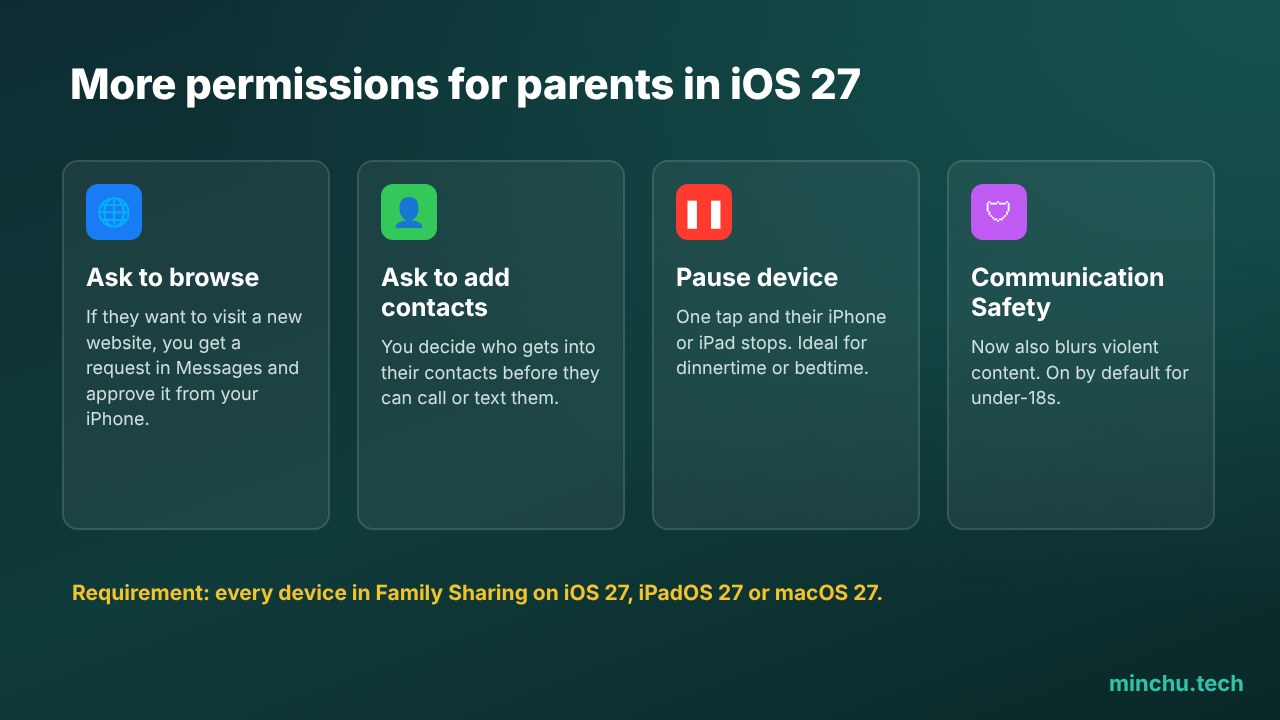
- Ask to browse: if your child wants to visit a new website, you get the request in Messages and approve or decline it from your iPhone.
- Ask to add contacts: before someone new gets into their contacts (and can call or text them), you have to give the OK.
- Pause Device: with a single tap, their iPhone or iPad stops. Perfect for dinner, homework or bedtime.
- Communication Safety: besides blurring nudity, it now also blurs violent or explicit images. It’s on by default for accounts of under-18s.
My take
The iPhone’s parental controls finally think like a family and not like a system administrator. Splitting time by category is much more natural than going app by app, and the pause button is one of those things you don’t know how you lived without. The only thing that bugs me is the requirement that every device be on version 27: in homes with an old iPad, some will be left out.
My advice: sit down with your child to set it up. Explaining why there’s a limit works much better than just imposing it.
Do you use parental controls on your kids’ devices? What do you think of the new category system? Let me know in the comments or on social media.